Why Every Designer Needs a Web-Based SVG Extractor
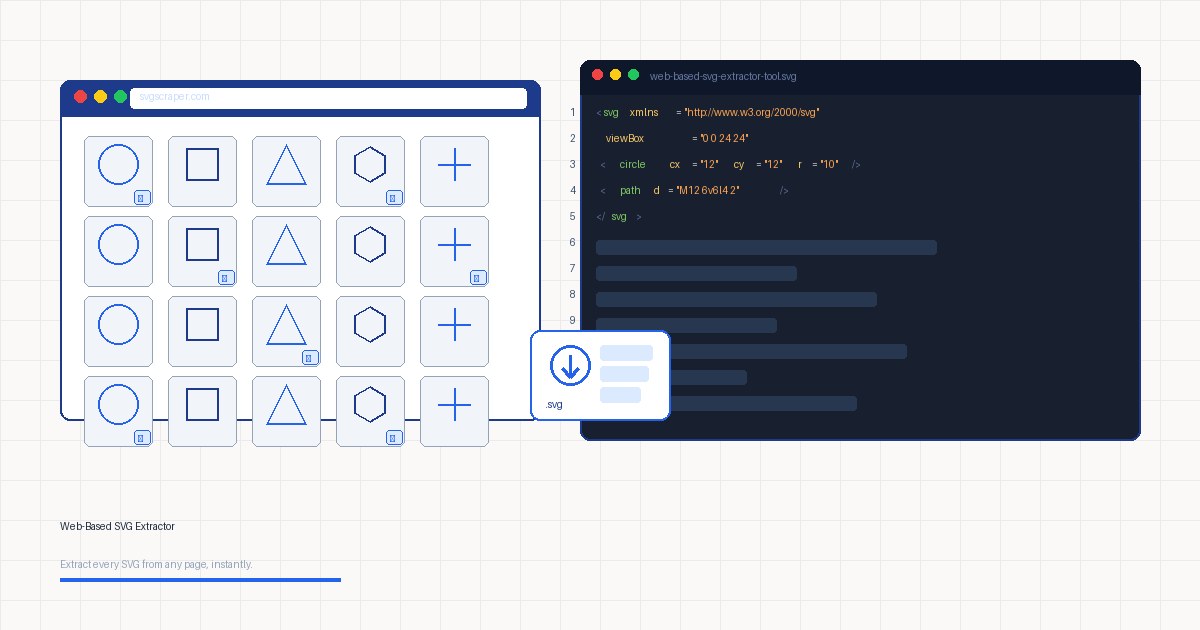
You find an icon set you like on a live site. You open DevTools, hunt through the Elements panel, copy some SVG markup, clean it up, save it. Fifteen minutes later you have three icons. A web-based SVG extractor does the same thing in about ten seconds. That gap in speed is the whole reason these tools exist, and it is worth understanding what is actually happening under the hood.
What a web-based SVG extractor actually does
When you hand a URL to an SVG extractor, it fetches the page and parses everything that could be an SVG. That breaks down into three categories that you would otherwise have to check manually:
1. Inline <svg> elements embedded directly in the HTML source. 2. External SVG files referenced via <img src>, <use href>, or <object data> tags. 3. CSS background SVGs, both as external file references and as base64 data URIs.
The inline case is straightforward: parse the DOM, serialize each <svg> node. External references need a fetch step. CSS backgrounds are the awkward one because they require reading computed styles, not just the HTML. A good extractor handles all three without you specifying which pattern the page uses.
Here is what a typical inline SVG looks like once extracted and cleaned up:
<svg xmlns="http://www.w3.org/2000/svg" viewBox="0 0 24 24" fill="none" stroke="currentColor" stroke-width="2">
  <circle cx="12" cy="12" r="10"/>
  <polyline points="12 6 12 12 16 14"/>
</svg>
That xmlns declaration and a clean viewBox are what make the file portable. DevTools will often give you an SVG without xmlns, which then fails to render as a standalone file. A good extractor normalizes these attributes automatically.
Why manual DevTools is slower than it looks
The Elements panel search feels fast until you count the actual steps: open DevTools, search for <svg, find the right element among decorative noise, expand it to confirm it is what you want, right-click and copy the outer HTML, paste it into an editor, strip the surrounding <div> cruft, add xmlns if missing, save the file. Per icon, that is seven or eight steps. On a page with forty icons, the math is painful.
The console script approach helps but introduces a different problem: you have to write or paste a script, allow multiple downloads when the browser prompts, and end up with files named svg-1.svg through svg-40.svg with no visual preview to figure out which is which. You still have to open each one to identify it.
A web-based extractor gives you visual thumbnails alongside the file, so you can identify exactly what you are downloading before you click anything.
Real use cases where extractors earn their keep
Competitive research. You want to see how a competitor's design system looks across their icon set. Manually saving forty icons for reference is tedious enough that most people skip it. With an extractor, you grab everything in one pass.
Prototype scaffolding. You are building a quick prototype and want real icons from a live product rather than placeholder shapes. Extracting a handful of SVGs from a site you are referencing takes seconds and gives you accurate assets to work with during the wireframe phase.
Brand audits. SVGs used across a company's web properties often drift: slightly different viewBoxes, inconsistent stroke widths, stale versions. Running each domain through an extractor gives you a fast inventory to compare against the design system source.
Debugging third-party embeds. A vendor widget is rendering a malformed SVG that breaks layout on your page. You need the actual SVG source to understand what is wrong. An extractor surfaces it cleanly without you having to dig through minified or obfuscated JavaScript.
What separates a good SVG extractor from a mediocre one
Not all extractors handle the same surface area. A few things worth checking before you commit to a tool:
CSS background handling. A lot of icon implementations use background-image: url("data:image/svg+xml,...") rather than inline SVG elements. An extractor that only scans for <svg> tags in the HTML will miss all of these.
Dynamic content support. Pages that load icons via JavaScript after the initial render are invisible to a simple HTML fetch. The extractor needs to run JavaScript to see the final DOM state. This means headless browser rendering, not just a raw HTTP fetch.
Clean output without manual editing. The extracted SVG should be ready to use: proper xmlns declaration, valid viewBox, no dangling class references that point to styles that no longer exist outside the host page.
Preview before download. Seeing a thumbnail next to the file name before you download saves the round-trip of downloading everything and checking locally.
If you want to see what this looks like in practice, try SVG Scraper. Paste a URL, and it surfaces every SVG on the page with thumbnails and individual download buttons, handling inline, external, and CSS background variants.
When to reach for the browser console instead
A web-based extractor is the right tool for one-off extraction and broad sweeps. The console script approach has advantages in specific situations:
- You need SVGs from a page behind authentication (an extractor cannot log in for you).
- You want to post-process the SVGs programmatically: renaming them by their
aria-label, filtering by size, or converting attributes before saving. - You are working in a tight loop where you are modifying the page live and want to extract the current DOM state.
For those cases, a console snippet that you have saved in DevTools Snippets is faster. The two approaches are complementary, not competing.
SVG output quality matters more than extraction speed
The extraction step itself is fast either way. What costs time is everything after: cleaning up broken attributes, adding missing declarations, identifying which file is which. A good extractor front-loads that work so you get clean, labeled, immediately usable files. That is the actual value proposition, not just the fetching.
If you are regularly pulling SVGs from websites as part of research, prototyping, or debugging, putting a dedicated tool in your workflow will pay for itself in avoided tedium within the first few uses.