The Easiest Way to Download Inline SVGs via URL
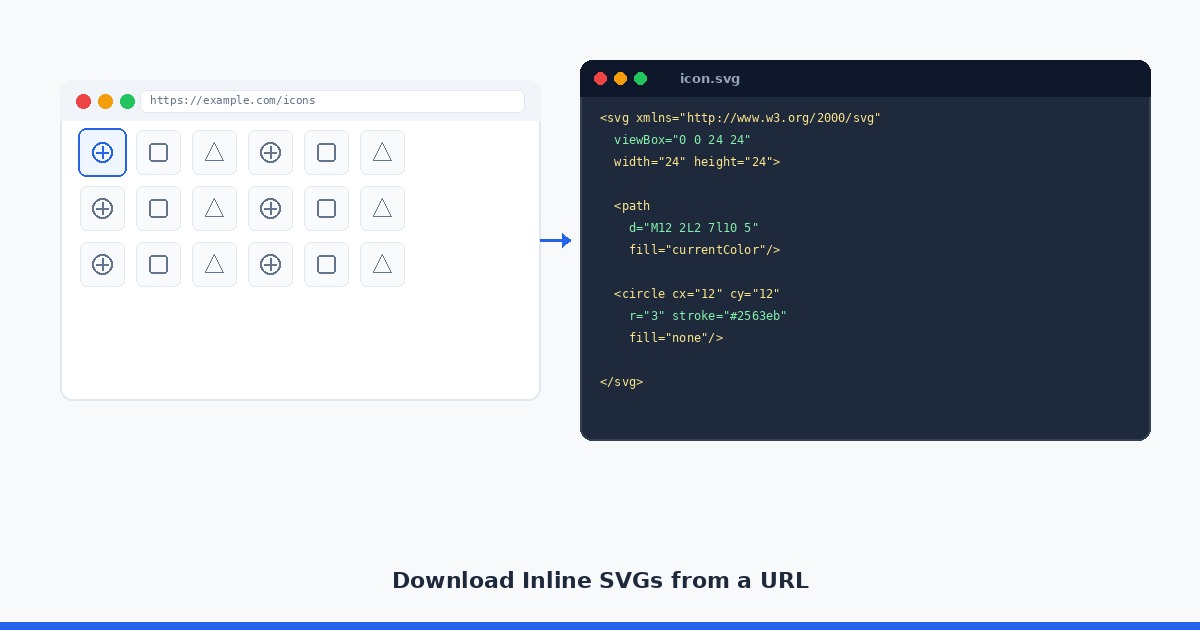
When you land on a page with a sharp icon set and want those SVGs, your first instinct is to right-click and save. That works for PNGs. It rarely works for SVGs. Most modern sites render icons as inline SVG code -- a block of XML that lives inside the HTML document rather than as a separate file request. There is no URL to download, no file in the network tab, just code in the DOM. Here is how to get it out cleanly.
Why inline SVGs don't behave like normal files
An SVG loaded via an <img> tag is a straightforward network request. You can see it in the browser's network panel and open it directly. An inline SVG is different -- the browser reads the XML directly from the HTML response. From the network's perspective, it is just text. No separate file request exists for it.
This is intentional. Inline SVGs allow CSS to style the path elements directly, which lets a single icon change color on hover or respond to a dark mode toggle. The tradeoff is that extraction requires a different approach.
Method 1: View source and search for <svg>
The simplest method needs only a browser. Open the page URL, then access the page source:
- Chrome / Edge:
Ctrl+Uon Windows,Cmd+Uon Mac - Firefox:
Ctrl+Uon Windows,Cmd+Uon Mac - Or append
view-source:before the URL in the address bar
Once you have the source, search for <svg. Each match is a potential SVG element. Select from the opening <svg tag through to the closing </svg>, paste into a text editor, and save as a .svg file.
This works fine for one or two icons. For an entire icon set, it is tedious.
Method 2: Copy from the Elements panel
The Elements panel in DevTools gives you a cleaner view than raw source, and it reflects any JavaScript-rendered SVGs that may not be in the initial HTML response.
1. Right-click the icon on the page and select Inspect. 2. The Elements panel opens with focus on that node. If the highlighted element is a <use> tag, navigate up the DOM to find the <symbol> or the parent <svg> block. 3. Right-click the <svg> tag and choose Copy then Copy outerHTML. 4. Paste the result into a text editor. 5. Save with a .svg extension.
One thing to check before saving: confirm the <svg> opening tag includes the XML namespace. If it is missing, design tools like Figma or Illustrator may refuse to open the file.
<!-- Required namespace attribute -->
<svg xmlns="http://www.w3.org/2000/svg" viewBox="0 0 24 24" width="24" height="24">
  <path d="M12 2L2 7l10 5 10-5-10-5zM2 17l10 5 10-5M2 12l10 5 10-5"/>
</svg>
If the namespace is absent, add xmlns="http://www.w3.org/2000/svg" to the opening tag manually.
Method 3: Fetch and parse the URL programmatically
If you need to extract SVGs from a URL in a script or build process, you can fetch the HTML and parse it with the DOM API. Here is a minimal Node.js example using node-fetch and jsdom:
import fetch from 'node-fetch';
import { JSDOM } from 'jsdom';
import { writeFileSync } from 'fs';

async function extractSVGs(url) {
  const html = await fetch(url).then(r => r.text());
  const dom = new JSDOM(html);
  const svgs = dom.window.document.querySelectorAll('svg');

  svgs.forEach((svg, i) => {
    // Ensure namespace is present before serializing
    if (!svg.getAttribute('xmlns')) {
      svg.setAttribute('xmlns', 'http://www.w3.org/2000/svg');
    }
    const serialized = svg.outerHTML;
    writeFileSync(`icon-${i + 1}.svg`, serialized);
  });

  console.log(`Extracted ${svgs.length} SVGs`);
}

extractSVGs('https://example.com');
This handles JavaScript-free pages well. For sites that render icons dynamically via React or Vue, you would need a headless browser like Playwright or Puppeteer to run the page first and then query the live DOM.
import { chromium } from 'playwright';
import { writeFileSync } from 'fs';

const browser = await chromium.launch();
const page = await browser.newPage();
await page.goto('https://example.com');

// Wait for icons to render
await page.waitForSelector('svg');

const svgs = await page.$$eval('svg', nodes =>
  nodes.map(svg => {
    if (!svg.getAttribute('xmlns')) {
      svg.setAttribute('xmlns', 'http://www.w3.org/2000/svg');
    }
    return svg.outerHTML;
  })
);

svgs.forEach((code, i) => writeFileSync(`icon-${i + 1}.svg`, code));
await browser.close();
Method 4: Use a URL-based extraction tool
For a no-code option, try SVG Scraper. Paste a URL and the tool parses the fully-rendered DOM, including dynamically injected SVGs that would be missed by a raw fetch request. It handles inline elements, external sprite files, CSS data URIs, and favicon SVGs in a single pass.
The downloaded files come normalized: namespaces are added where missing, relative paths are resolved, and Base64 data URIs are decoded to readable XML. You can grab individual files or download the whole set as a ZIP.
Common issues and fixes
The SVG is empty after saving. The icon uses <use href="#icon-id"> which references a <symbol> defined elsewhere in the document. You need to copy the <symbol> definition, not the <use> tag. Wrap it in a root <svg> element with the matching viewBox.
Colors are wrong or all black. The SVG uses fill="currentColor", which inherits its color from the surrounding CSS. When saved standalone, there is no parent element setting the color. Replace currentColor with the actual hex value you need.
<!-- Before: relies on parent CSS -->
<svg fill="currentColor" viewBox="0 0 24 24">
  <path d="M12 2L2 7l10 5 10-5-10-5z"/>
</svg>

<!-- After: self-contained color -->
<svg fill="#1a1a1a" viewBox="0 0 24 24" xmlns="http://www.w3.org/2000/svg">
  <path d="M12 2L2 7l10 5 10-5-10-5z"/>
</svg>
The file is valid but looks cropped. The viewBox attribute defines the visible coordinate space. If it is missing or set incorrectly, the icon will be clipped. Add viewBox="0 0 [width] [height]" based on the coordinate values used inside the paths.
The fetch request returns a 403. The server is blocking programmatic requests. Try adding a User-Agent header that mimics a browser, or use a headless browser approach which sends a full browser fingerprint.
Summary
Downloading inline SVGs from a URL comes down to how the page renders them. For static HTML, viewing source or using the Elements panel is enough. For JavaScript-rendered pages, a headless browser gets you to the live DOM. For anything at scale, or when you just want the files quickly without writing code, an automated tool like SVG Scraper handles the full extraction workflow in one step.